Find your files, recover them safely, and prove they came back intact.
Recovera runs on your Mac and only ever reads the drive it is looking at.
Your files are not sent anywhere, and nothing is written to the drive
you are recovering from.
Recovera needs macOS 14 Sonoma or later, on an Apple silicon or Intel Mac.
It is notarised by Apple, so it opens without a security warning.
Open the downloaded disk image and drag Recovera onto Applications.
Eject the disk image, then open Recovera from the Applications folder.
On first launch you will see a Welcome screen. External drives, memory cards and disk images work straight away. Internal disks need one extra permission, set up in Internal Disks & Access.
If Recovera tells you to move it to Applications, do that. Run from anywhere else, macOS
will not let it install the helper that reading an internal disk needs.
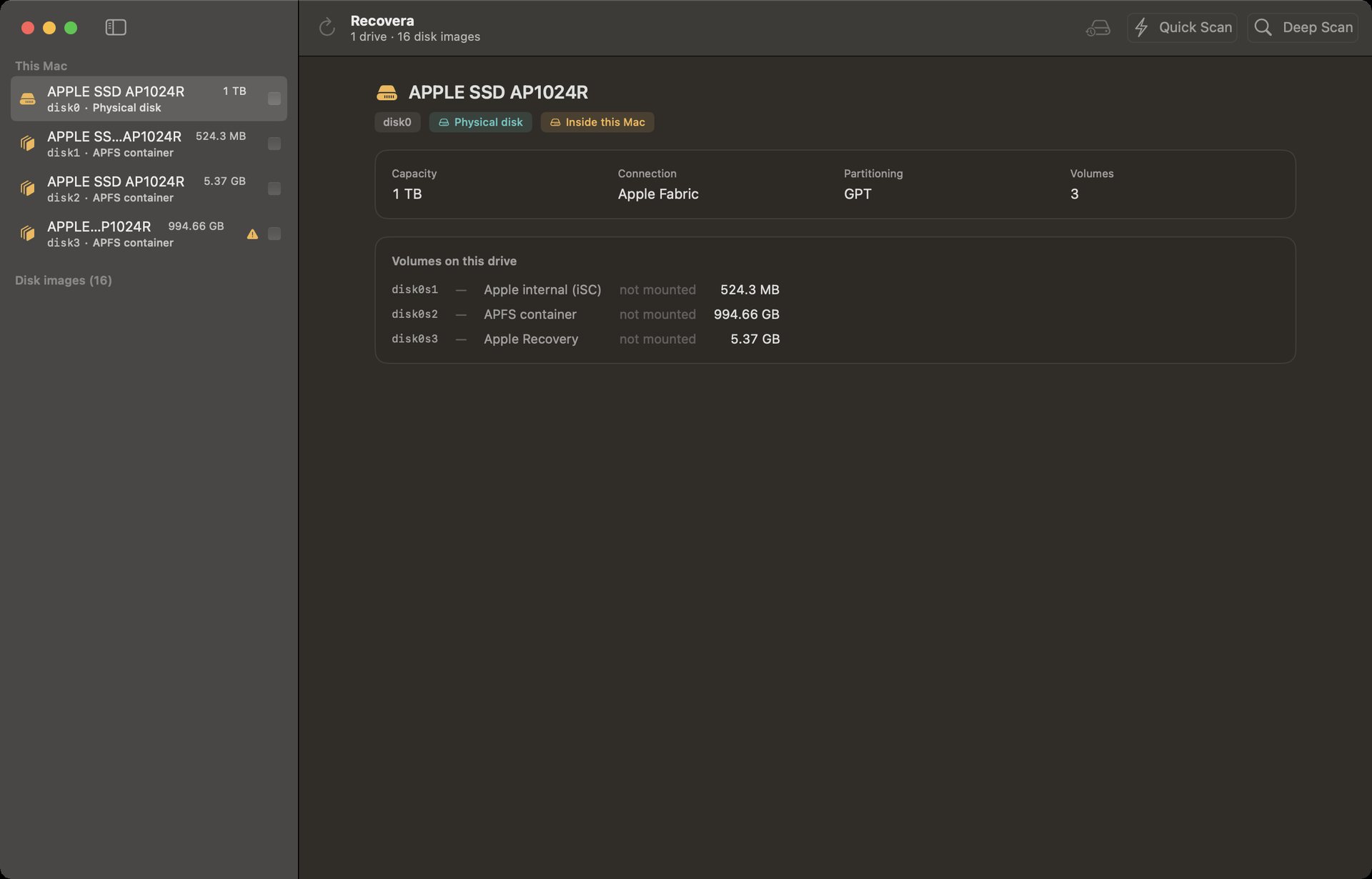
The drives screen. Each drive shows its type: physical disk, disk image or APFS container.
Find
Scanning a Drive
Connect the drive and, if it does not appear, choose Drive > Look for Drives Again (⌘R).
Select the drive, then choose Quick Scan or Deep Scan.
Watch the progress. You can stop at any time with ⌘. and still look at what has been found so far.
Quick Scan reads what the filesystems record: it is fast, and it is the right first
step for deleted files and for drives that still have a working filesystem.
Deep Scan reads the whole drive for recoverable content. It is slower, and it is what
finds files after a format or when the filesystem is damaged.
To scan a disk image, choose File > Open Disk Image… (⇧⌘O). To scan several drives
that make up one RAID set, tick Scan with others on each, then use Quick Scan Together
or Deep Scan Together.
Scanning a large drive can take a long time. Recovera keeps your Mac awake while it works, so you can leave it running.
Find
Reviewing Results
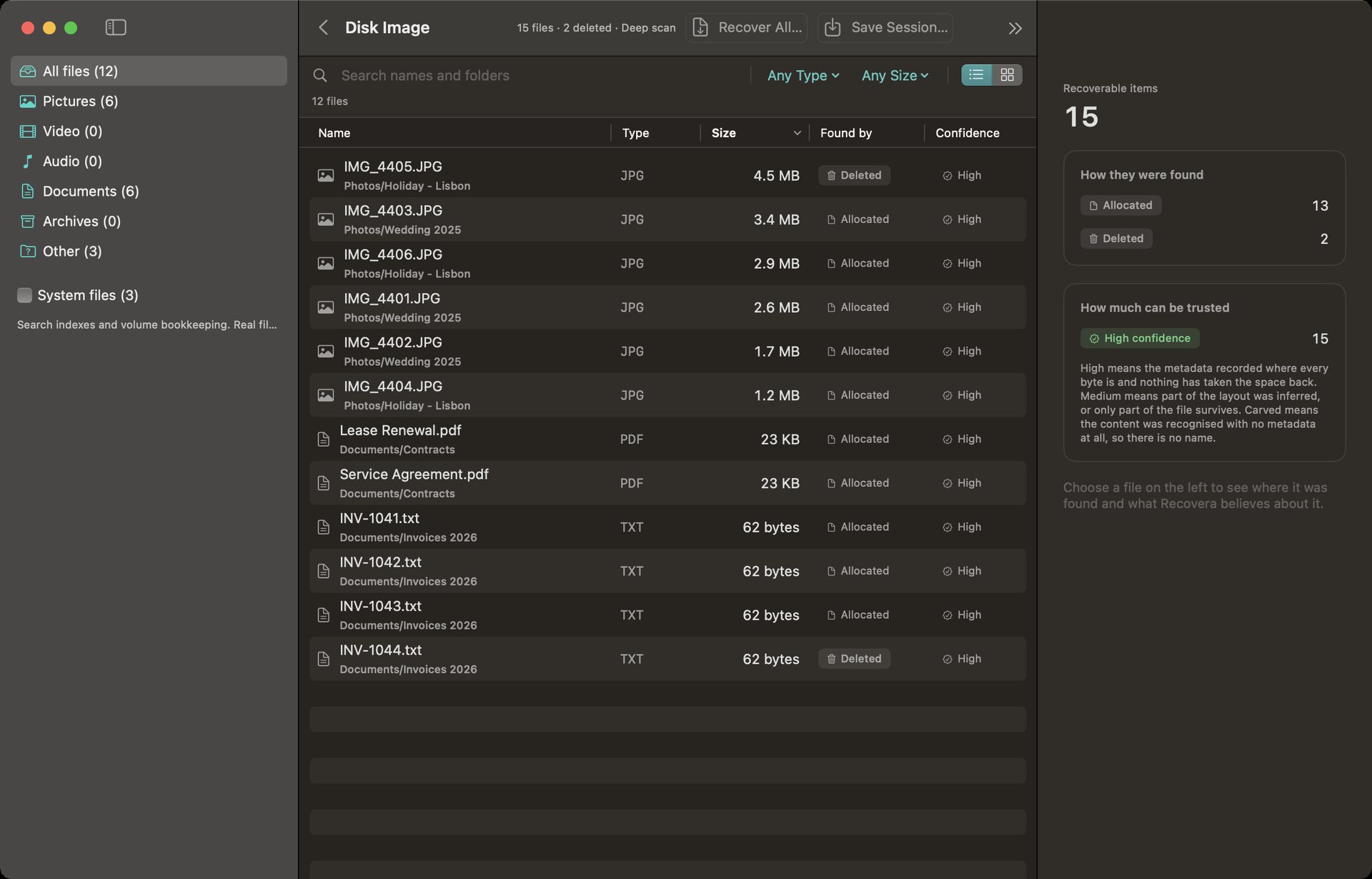
Results are grouped by kind on the left. Switch between the list and a grid of pictures with
⌘1 and ⌘2, search with ⌘F, and filter by type or size.
Select a file to see its details and a preview on the right.
Names and folders appear when the drive still records them. After a quick format of an NTFS or exFAT drive, they often come back from the old records. Files found by their contents alone have no name. Recovera shows what they are, such as JPG, and where on the drive they were found, and saves them with names like carved-000000033200.jpg.
Previews are small on purpose. They are enough to tell one photo or video from another. The recovered file is the full original.
A preview that will not draw does not mean the file is lost. A damaged or partly overwritten file may still contain the bytes you want.
Scanning and previewing are free. You only need your licence key when you save files.
To keep a long scan, choose Recovery > Save Session… (⌘S). Reopening it later is checked
against the drive: if the drive has changed, Recovera refuses to show stale results.
Results: categories, the file table, and the detail pane.
Recover
Recovering Files
Select the files you want, or select none to recover everything shown.
Click Recover… (⌘↩).
Choose a folder on a different physical drive from the one you are recovering. Recovera refuses to save onto the same drive, because that can overwrite the files you are trying to save.
Choose Preserve folder structure to rebuild the original folders, or Recover files into one folder.
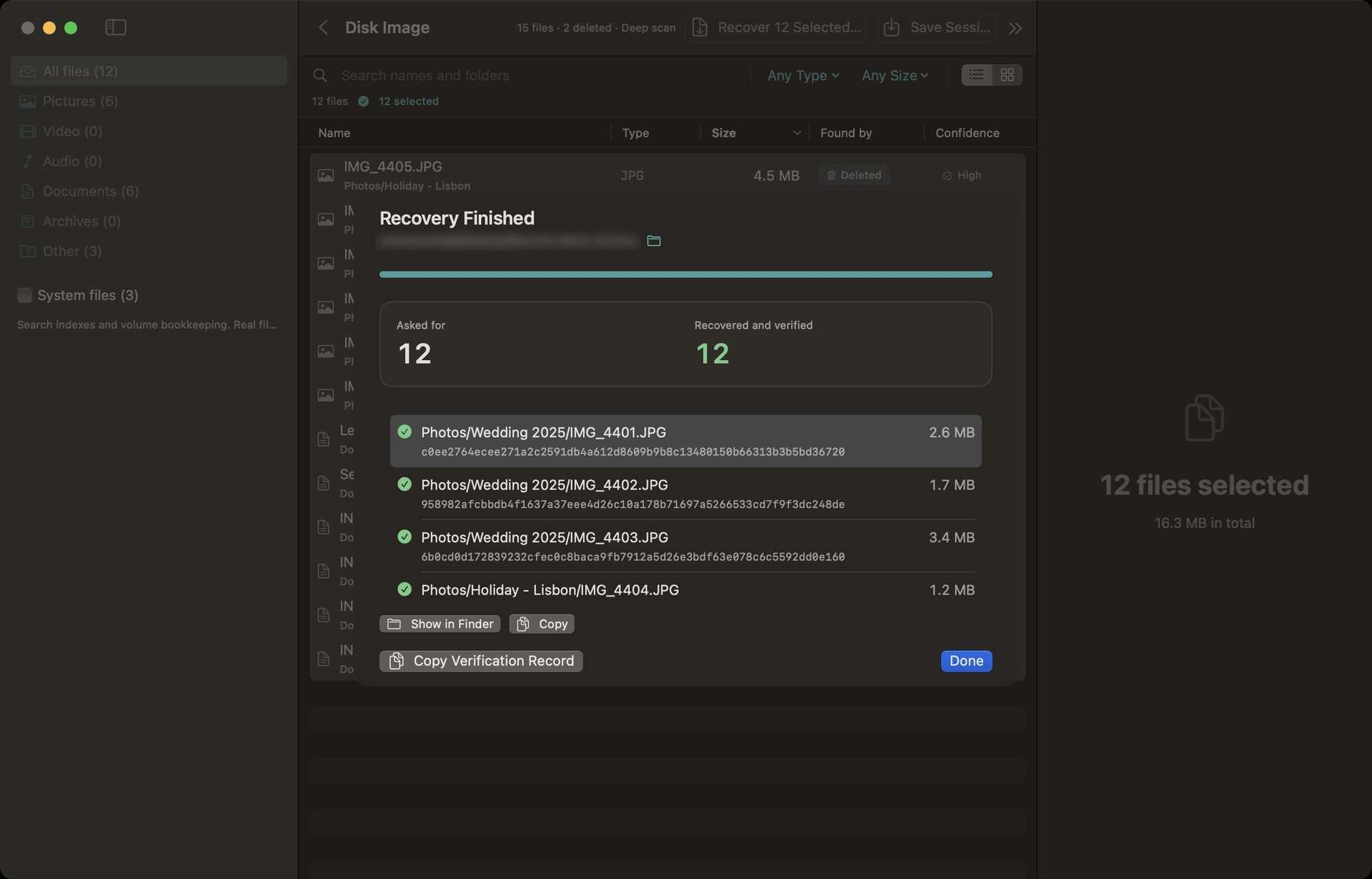
Every file is read, written, and then checked against a SHA-256 checksum. The recovery summary lists each file as recovered or not, with the reason.
Choose Recovery > Copy Verification Record to copy a record you can keep or hand to a client, and
Recovery > Show in Finder (⇧⌘R) to open the folder.
The recovery summary: each file, and the checksum that proves it came back intact.
Recover
Failing Drives: Image First
A drive that is clicking, very slow, or dropping off the Mac gets worse every time it is read.
Copy it once, then work from the copy.
Select the drive and choose Create Image… (Drive menu).
Choose a folder on a different drive with enough free space for the whole disk, and click Create Image Here.
Let it run. Recovera copies the readable areas first, then goes back to the damaged areas and retries them. If it is interrupted, start the same image again in the same folder and it carries on, without reading again what is already rescued.
When it finishes, choose Scan This Image and recover from the image instead of the dying drive.
An image is a copy of the whole disk as a single file. The image is tied to the drive it came from.
Recover
Encrypted Drives
An encrypted APFS drive asks for its password (or recovery key) before Recovera can read it. Enter the
one it was encrypted with. Recovera asks the drive itself whether it is right, so a wrong password is refused
and never produces damaged files.
Recovera never cracks, guesses or bypasses passwords, and the password is used only to open
the drive. It is never saved. If the password and the recovery key are both lost, the data cannot be read by
anyone. That is how encryption is meant to work.
Setup
Internal Disks & Access
External drives, memory cards and disk images need nothing here. Reading a disk inside the Mac needs two
approvals from you, which macOS does not let any app give itself.
Make sure Recovera is in the Applications folder.
Choose Access > Set Up System Access…. When macOS asks, switch Recovera on in System Settings > General > Login Items & Extensions. This approves the small helper that reads disks.
Open System Settings > Privacy & Security > Full Disk Access and switch Recovera on.
Choose Access > Check Again.
macOS offers no way to ask whether Full Disk Access is granted, so Recovera shows it as confirmed once it has
successfully read an internal disk. Until then it may show a question mark. That is expected, not a fault.
Apple silicon Macs: the internal drive cannot be recovered by any software, on a working Mac or not, because
its contents are encrypted by the Mac's own security chip.
Buying
Your Licence (Recovera 0.3 and later)
Scanning and previewing are free, so you can see what Recovera found before you pay. Saving files needs a
licence key, bought once. There is no subscription.
After buying, your key arrives by email from Lemon Squeezy.
Click Recover…. When Recovera asks for it, paste the key and click Unlock.
To see your licence, or move it to another Mac, open Recovera > Settings… (⌘,) and choose Remove Licence from This Mac… first.
One key unlocks one Mac. Remove it from the old Mac before using it on a new one. If the old Mac is gone, email support with your order number and we will release it.
You need the internet when you first enter the key. After that Recovera works offline. It checks the key again whenever it is online, and needs a successful check at least once every 30 days.
Refunds: 14 days, in full, if Recovera does not run on your Mac or cannot recover files it found on your drive. See Refunds & support. A refunded key stops unlocking recovery.
Help
Troubleshooting
My drive is not in the list
Choose Drive > Look for Drives Again (⌘R). Check the cable, port and power: many external drives need their own
power or a better cable. If the drive does not appear in Apple's Disk Utility either, Recovera cannot see it,
and the problem is the cable, the enclosure or the drive itself. Internal disks only appear once system access is set up.
The scan found nothing, or only a few files
Try Deep Scan if you used Quick Scan. On SSDs, files that were deleted or formatted away are often erased by the drive itself
(a feature called TRIM) and cannot be recovered by any software. The sooner you stop using a drive, the more survives.
Files are recovered without names
When the filesystem's records are gone, files are found by their contents alone and shown by type and by where on the drive they were found. Previews
help you tell them apart. A quick-formatted NTFS or exFAT drive can often get its names back, so run a Deep Scan.
Recovera refused the folder I chose
If it says the destination "is on the same physical disk as the drive being recovered", the folder is on the drive you are recovering,
or on another volume of the same disk. Pick a folder on a separate physical drive.
This protection cannot be turned off, because saving onto the source can destroy the files you are after.
An internal disk will not scan
Recovera must be in Applications, the helper must be approved in Login Items & Extensions, and Full Disk Access must be on.
Follow Internal Disks & Access, then Access > Check Again.
A recovered file will not open, or opens damaged
A file found by its contents may have been stored in pieces that were not all together. Photos and video then
open partly or with glitches. Recovering again from a Deep Scan sometimes finds a better copy. The checksum
in the verification record proves the file is the bytes that were read from the drive, not that the original was undamaged.
My licence key is not accepted
Paste the key exactly as it arrived, and check you are online. A key that already unlocks another Mac
must be removed there first (Recovera > Settings…). A key from a different product is refused. If it still fails,
email support with your order number.
Recovera says it needs a licence check
It has not been able to reach the licence server for 30 days. Connect to the internet and choose Check Again.
Nothing needs to be typed in again.
Help
What Recovera Can't Do
Recover the internal drive of an Apple silicon Mac. No software can.
Recover files the drive has already erased for good, which is common on SSDs.
Unlock a drive without its password or recovery key. It never cracks or bypasses passwords, and a serial number is not a key.
Open Windows BitLocker drives, read Windows Storage Spaces, or work with hardware RAID controllers.
Repair a damaged partition table.
Rebuild a file whose bytes are gone. It finds and returns what is still on the drive.
Help
Support
The quickest way is Help > Email Support… inside Recovera (version 0.3 and later). It writes an email to
[email protected] that already says which Recovera and
which macOS you have. It never includes your licence key, your drives' names, or your files.
Otherwise email us yourself, with your macOS version, what kind of drive it is and what happened to it, and what Recovera showed.
For a licence or refund question, include your order number from the receipt email. A screenshot helps.